Introduction
Monitoring your node’s performance in real time allows you to ensure that it is running smoothly and efficiently. The go-quai client bundles a monitoring solution that allows you to track the health and performance of your node. This guide will walk you through setting up Grafana and Prometheus to monitor your node.Prerequisites
Install Dependencies
If you are configuring monitoring for an external node, you will need to forward the Prometheus and Grafana ports to your local machine.
Grafana runs on port 3000, and Prometheus runs on port 9090 by default.
Prometheus
Installing Prometheus can be done from the command line using your favorite package manager. Run the following command to install Prometheus on a Linux machine:Grafana
You can install Grafana by following the instructions on the official Grafana download page. For example, on Ubuntu, you can install Grafana using the following commands:Configuration
Prometheus requires a configuration file to scrape metrics from your node.go-quai has a pre-configured Prometheus configuration file that you can use. To use this configuration file, run the following command:
You only need to copy the configuration file once. If you have already copied the file, you do not need to run the command again.
Initialize Node Monitoring
To start monitoring your node, you’ll need to ensure that both Prometheus and Grafana are running. You can start both services using the following commands:--metrics.enabled flag. This will enable Prometheus to scrape metrics from your node. To start your node with the --metrics.enabled flag, run your normal node startup command with the metrics flag added to it:
Access Grafana
To access Grafana, open your web browser and navigate tohttp://localhost:3000. You will be prompted to log in. The default username and password are both admin.
Add Prometheus to Grafana
Once you have logged into Grafana, we need to add Prometheus as a data source. To do this, follow these steps:1
Open Connections Menu
Click on
Connections in the left-hand menu.2
Add New Connection
In the connections menu, Click on
Add new connection.3
Select Prometheus
Select
Prometheus from the list of data sources. You may need to search for it.4
Add New Data Source
Click on
Add new data source in the upper right. This will take you to a settings tab where you can configure Prometheus.5
Set Prometheus Server URL
In the
Connection section of the settings tab, enter the following URL:http://localhost:9090if you’re monitoring a local machinehttp://EXTERNALIPADDRESS:9090if you are monitoring an external node
1
Open Dashboards
Click on
Dashboards in the left-hand menu.2
Create New Dashboard
Click the
New button.3
Import Configuration
Click the
Import button.4
Paste Configuration
Paste the configuration file located in
metrics_config/grafana_metrics.json into the text box. You can find the configuration file
hereMonitor Your Node
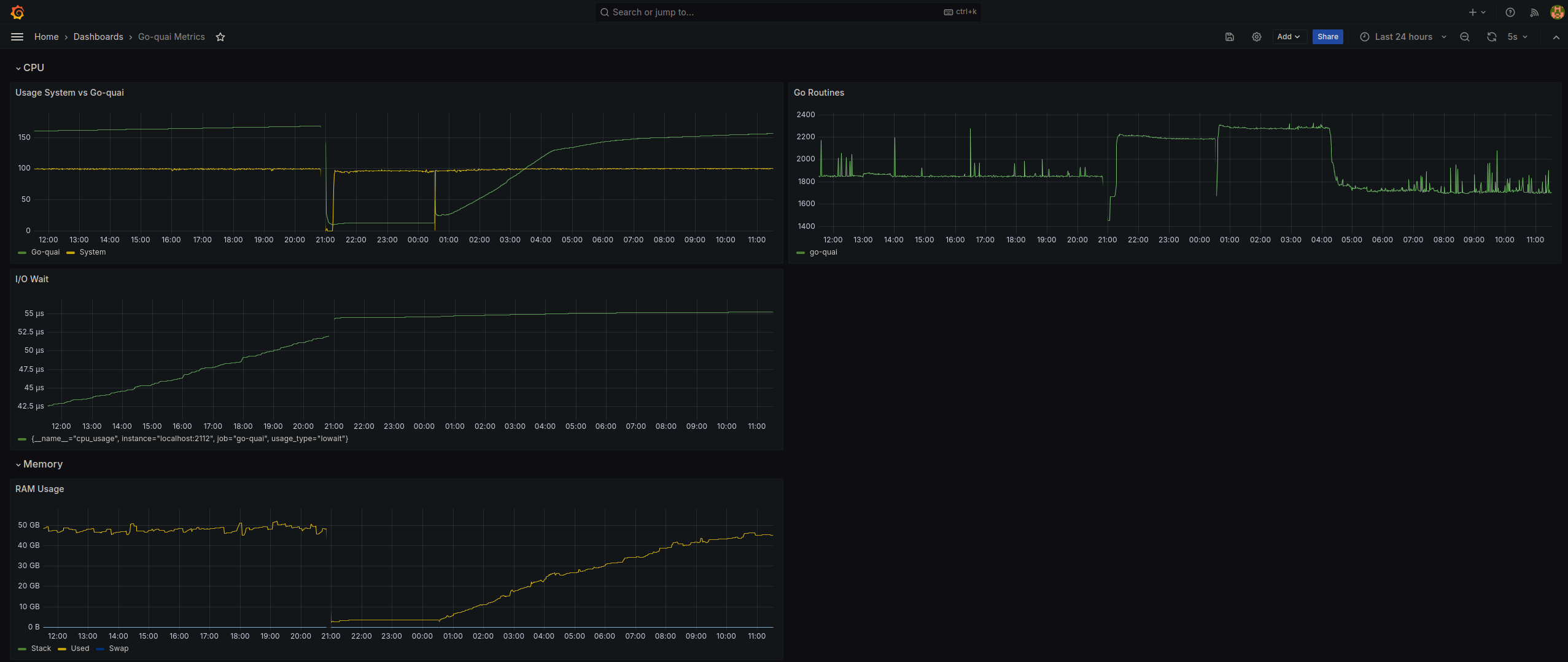
After setting the data source and importing the configuration file, you should see a dashboard similar to the one below that displays the health and performance of your node. Your node is now being monitored in real time.